Description
As an organization, you have the option of editing the details and appearance of your LMS. The General Settings menu under Account Settings allows you to adjust those, and more, settings for your organization.
Location
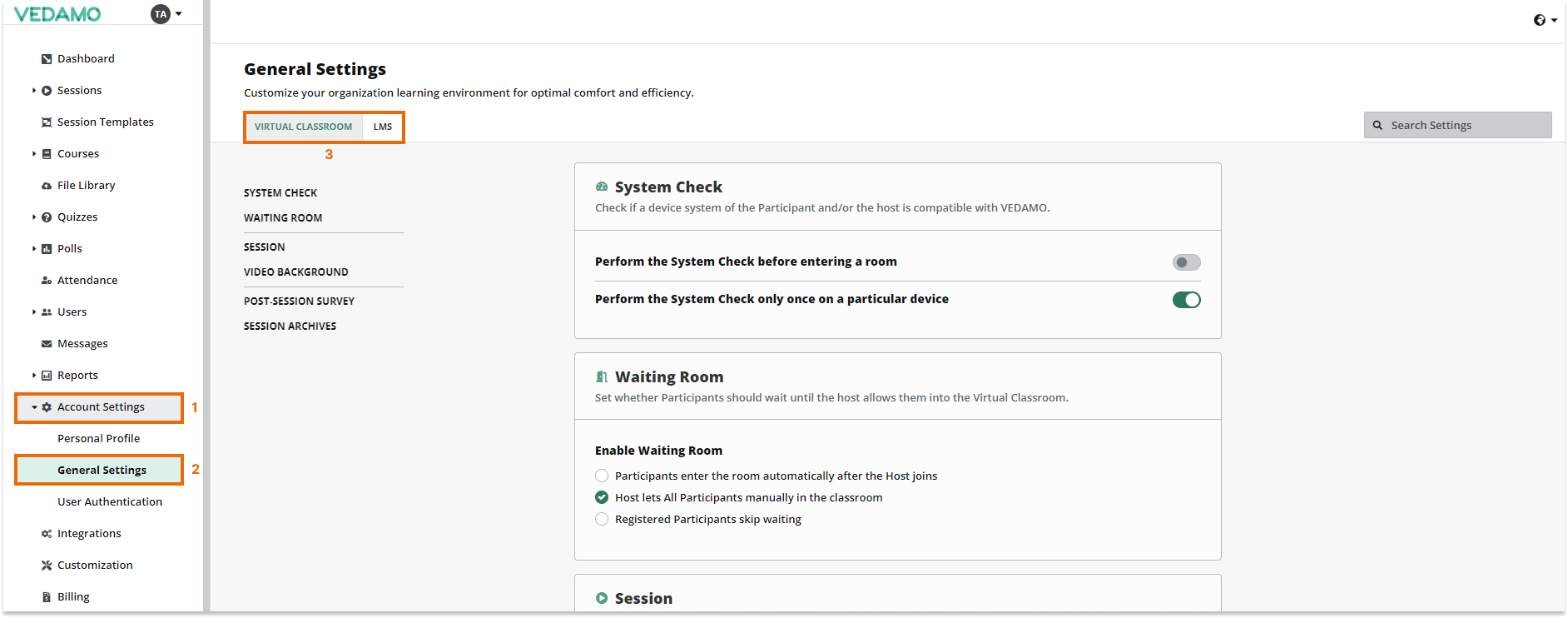
The menu can be accessed by clicking on Account & Settings in the left-side menu, and then on General information. The Menu is divided into two tabs: Virtual Classroom and LMS.
Organization details and LMS Account and Settings
Once you click on General Settings, you will see the Virtual Classroom and LMS tabs where you can edit your Learning Management System’s settings.
Subscription details
The default account page contains the Organization details of your plan. You can see the following details in the lower left part of the screen:
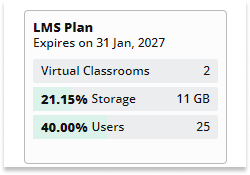
- Virtual Classrooms: the number shows you how many rooms are added to your LMS subscription.
- Storage: this shows you the amount (in percentage) of storage used in your academy, as well as the total storage available.
- User accounts: the number represents (in percentage ) the currently used accounts. The second number shows the total number of accounts that can be used in the academy.
Organization settings
You get access to various settings if you have subscribed to the premium Learning Management System plan. Below is the Virtual Classroom settings section:
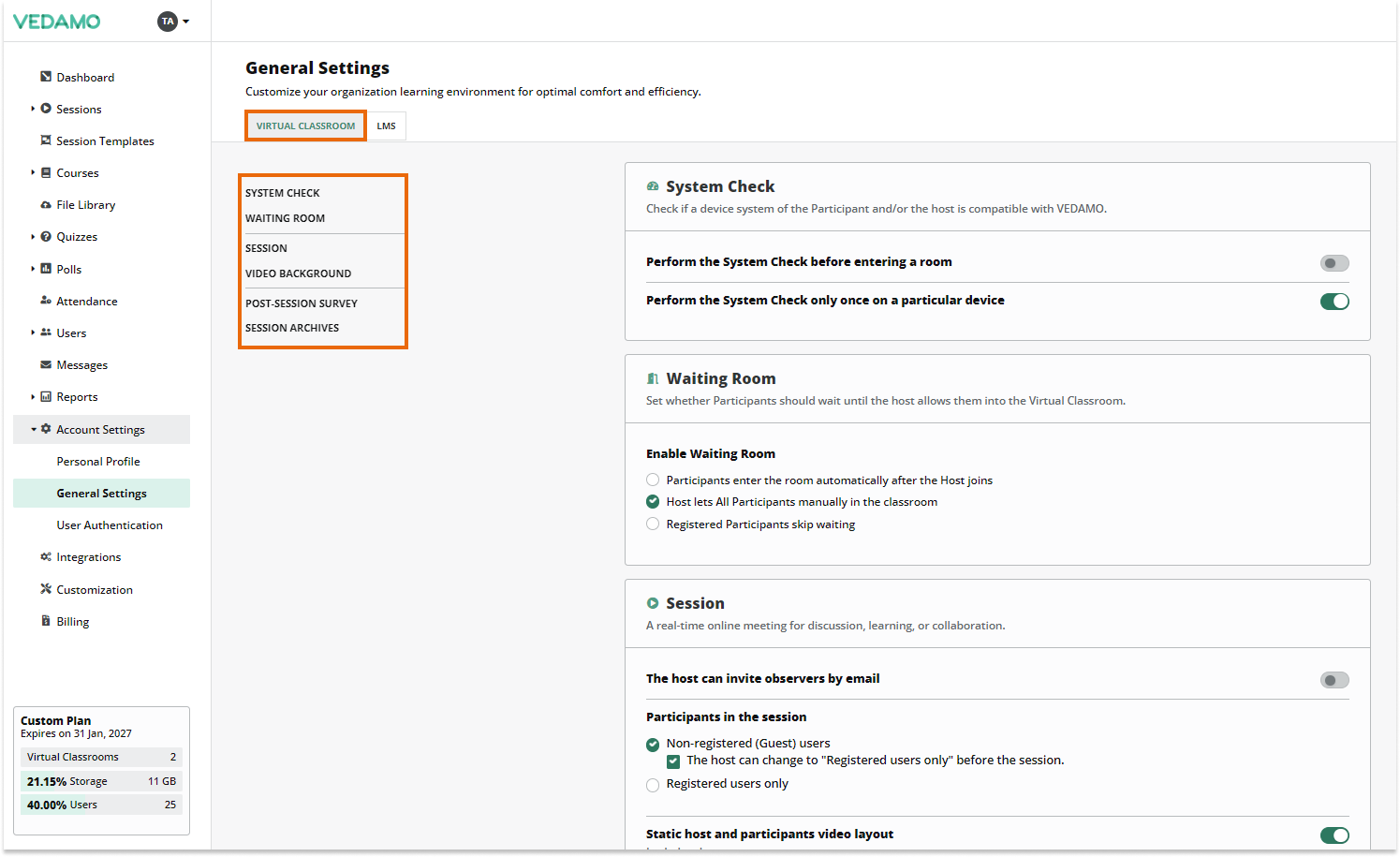
These settings are available in the LMS. As you can see, they are divided into sections, which we will now explain in more detail.
“System check”
- You can choose whether or not a system check should be performed before entering a room. We recommend turning this option on since any issues with the device can be identified before the beginning of the session.
- You can set the system check to be performed only once on a device. This will save you some time.
“Waiting room”
- You can decide whether or not the users/students have to wait for the host before they enter the room.
“Session”
- You can decide whether or not the host is able to invite observers (if turned on, an option in the Advanced settings of the room will be visible).
- The room type can be set here either for registered users or for guests. Also, the academy can set one type of a room but allow the host to decide to change it.
- The default video layout can be adjusted here as well. The room can be set to a static layout (all video boxes cannot be moved or resized; the individual video and video mosaic are shown on the right side of the screen) or not (video boxes are movable and scalable).
- Different ways for controlling the video boxes can be chosen – whether the users/students are able to open/close their video boxes or if they are controlled by the host).
- You can decide whether the accounts with only a teacher role are able to see all the sessions created in the academy or if they can only see their own.
- Allow/deny the distracted monitoring in the Virtual Classroom (if a user is not on the classroom tab a yellow indicator will be displayed in the mosaic and the participants list).
“Video Background”
- The Background images in the Virtual Classroom
The second tab in the General Settings is the LMS settings section:
“Users”
- The options available here will be explained in more detail below in the “User approval” part of the article”Session archives“
- You can define whether the hosts (accounts with a teacher role) should be able to delete the recordings of the rooms they created.
- Allow or deny access to the hosts to the links of the session archives. If this setting is turned on, only administrators will be able to manage them (the “Share link” – option will be unclickable for the hosts).
- Set only the administrators to be able to convert, download, and share the links to the archives (however, the hosts will still be able to see them, as well as the registered users who were part of the sessions).
- Define whether or not the rooms created in the academy should have recordings and whether or not the host should be given a permission to control this adjustment in the room.
- Decide if all future recordings should be automatically deleted and, if so, after what period of time.
- Define when the recording starts, when the host starts the session or the recording starts when the first participant enters the session.
- Toggle whether or not there will be a notification that notifies the users that the session is being recorded when they enter the session.
- Set whether Virtual Classroom sessions can be started if the storage quota is being exceeded.
Customization options
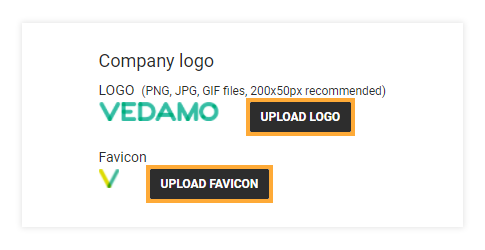
The Customization tab contains the Company logo and Favicon fields. The Upload logo button allows you to upload a custom logo for your academy. This will show up in the top left corner of your subdomain and replace the default VEDAMO logo. The Upload favicon lets you upload an icon that will appear on the browser tab in which your academy is open and it replaces the regular VEDAMO V icon that normally appears there.
Billing Details
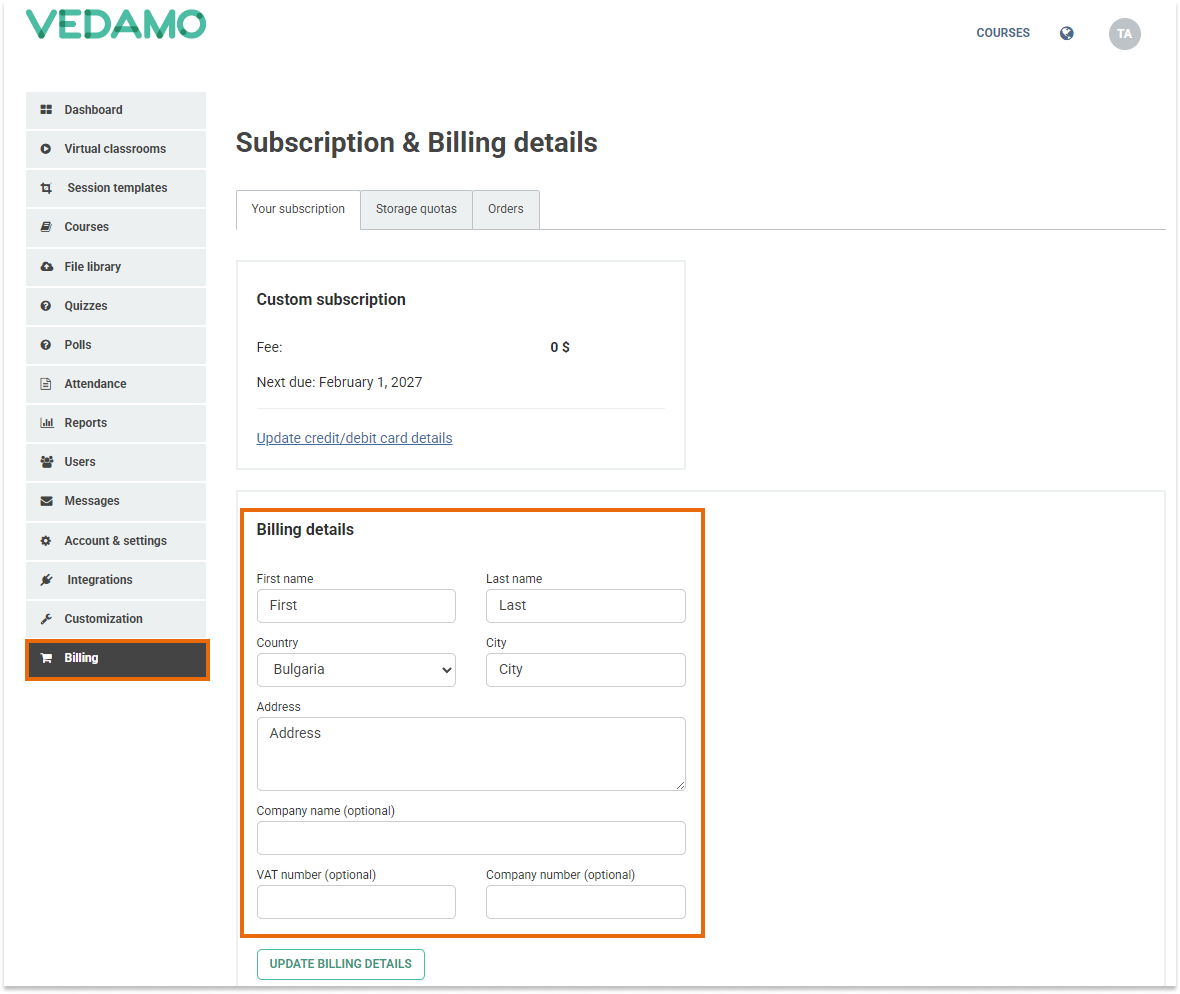
The billing details fields are located in the Billing section in your account. There you can include additional company/VAT details.
Storage quotas
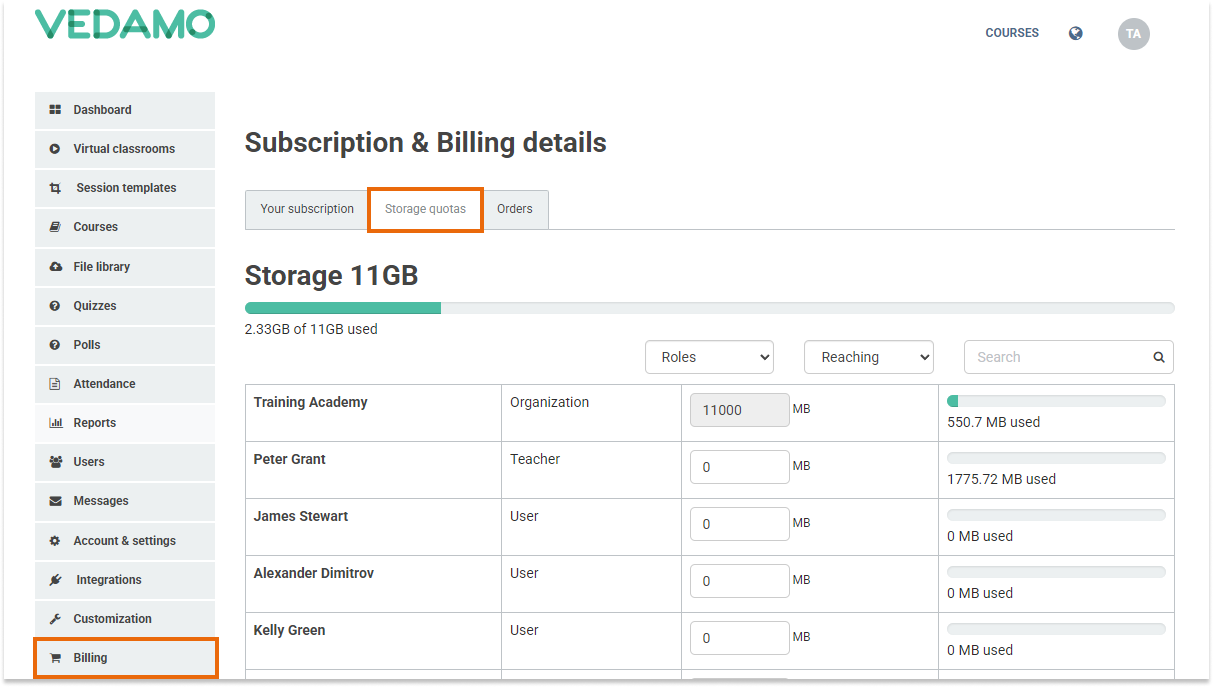
Storage quotas is located in the Billing section in your account. It allows you to distribute your total storage space between the different users in your academy. Your Organization account contains the full storage quota by default. The total size of your quota depends on your current subscription package. The Organization account can then transfer some of that quota to teachers’ accounts as necessary.
FOR EXAMPLE: If the Organizational account has a total quota of 11000 MB The Organization would like to increase the teacher’s (Peter Grant) quota to 5000 MB. To do that, they will need to type 5000 into that teacher’s box (you can also use the up/down arrows) and then click the Update button. The teacher’s quota will now be 5000 MB and the bar showing how much space they have remaining will now say 3 224,28MB of 50000MB used.
User approval
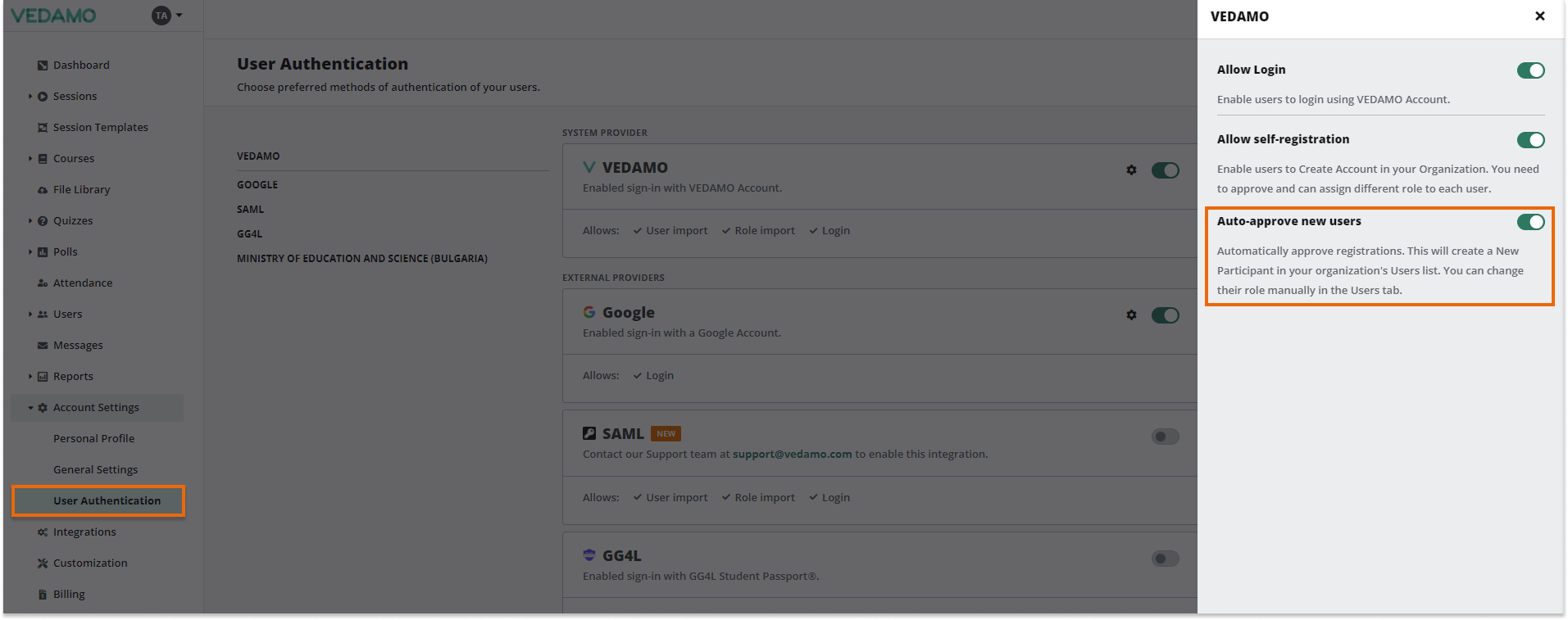
This functionality will let you choose whether or not user registration is allowed (if allowed, anyone can register in your academy, although only as a user by role).
If “Auto approve users registrations” is switched on all registrations won’t need any approval they will be completed automatically. Otherwise (not checked) the registrations will display “pending” status until the organizational/admin account has approved them.
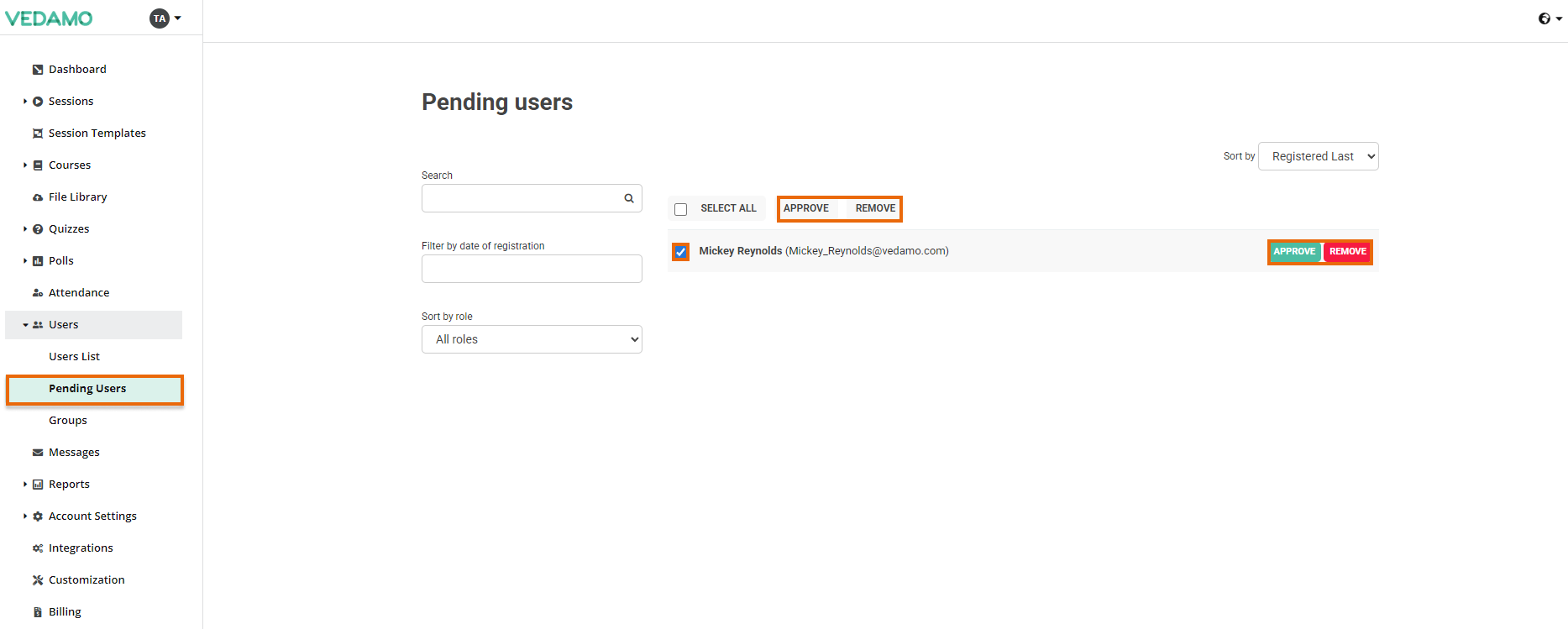
Note: Pending users will not increase the users quota.
If a user has not been approved (remove option is used), the user will be showing the suspended status.
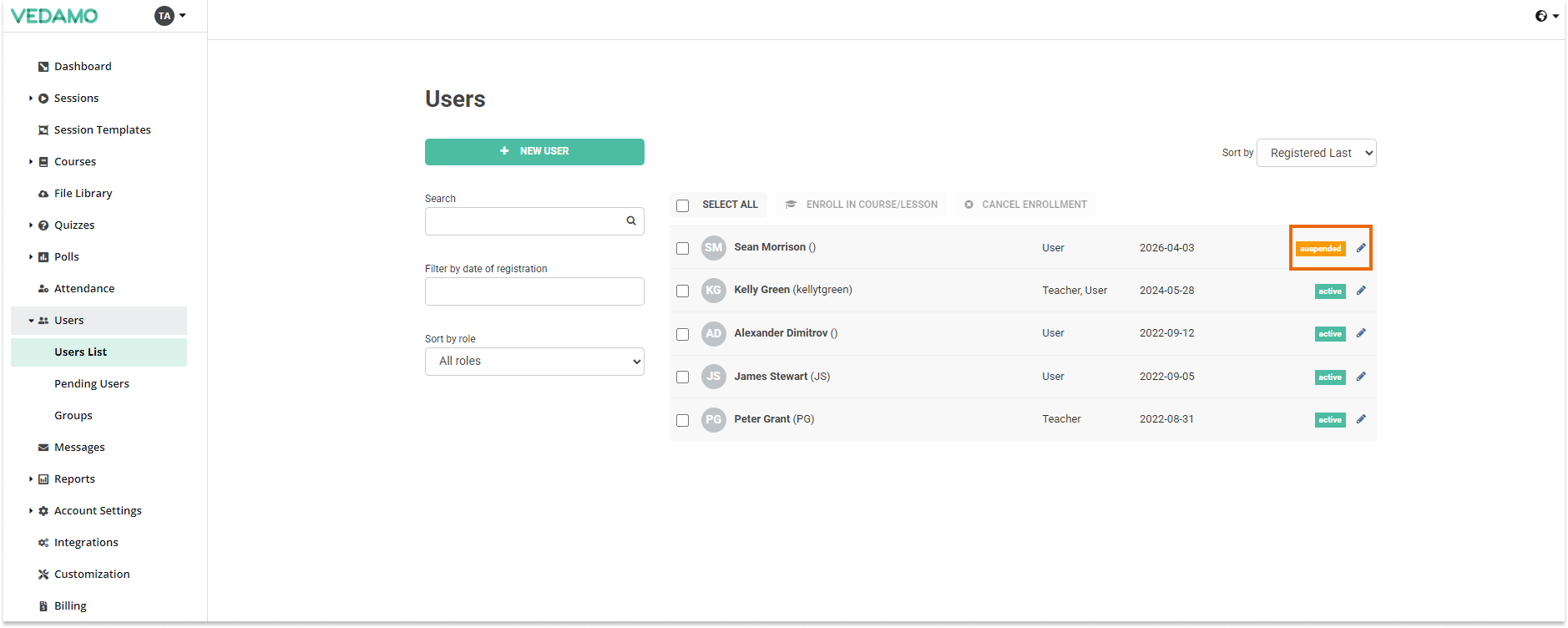
Note: Suspended users will not increase the users quota.
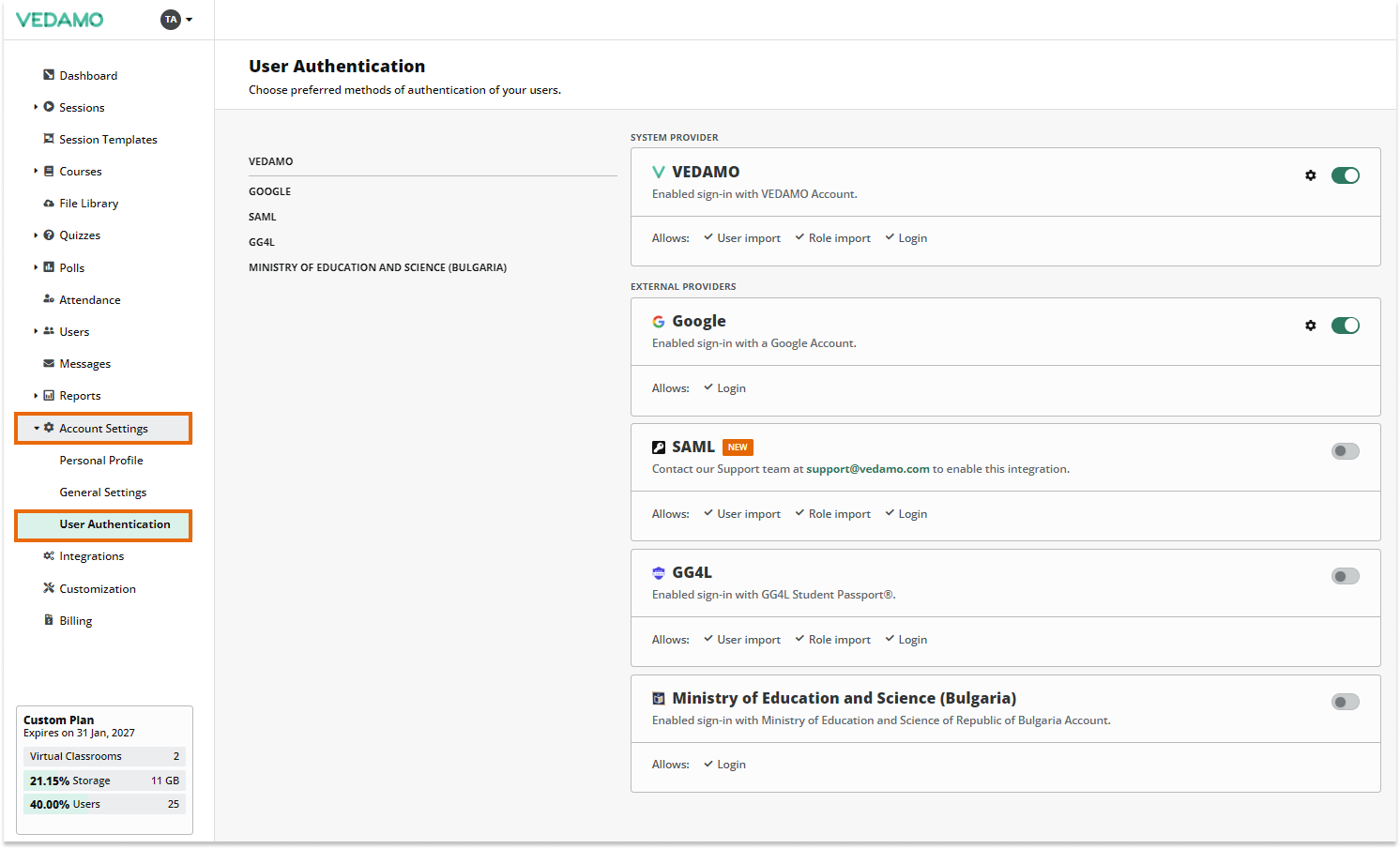
SSO (single sign-on)
Single sign-on (SSO) is an authentication scheme that allows a user to log in with a single ID and password to any of several related, yet independent, software systems. Single sign-on allows the user to log in once and access services without re-entering authentication factors.
Note: information provided from Wikipedia
At the moment the user can choose from the corresponding list:
-Google
-GG4L
– Ministry of Education and Science (MON)
-SAML (Contact our Support team at support@vedamo.com to enable this integration)